Connecting Clover
Link your Clover POS so the agent knows your live menu and can place orders.
Connecting Clover is what gives the agent a menu to sell from and somewhere to send orders. Without it, the agent can answer calls but cannot take an order.
What you need
Two values from your Clover account:
- Merchant ID — identifies your Clover merchant account.
- API token — authorises us to read your menu and create orders.
There is no "Sign in with Clover" redirect. You paste both values yourself.
Connect
Open the Clover settings
In your dashboard, go to Settings, then the Clover POS tab (it's also reachable as Clover Credentials in the left sidebar under Settings).
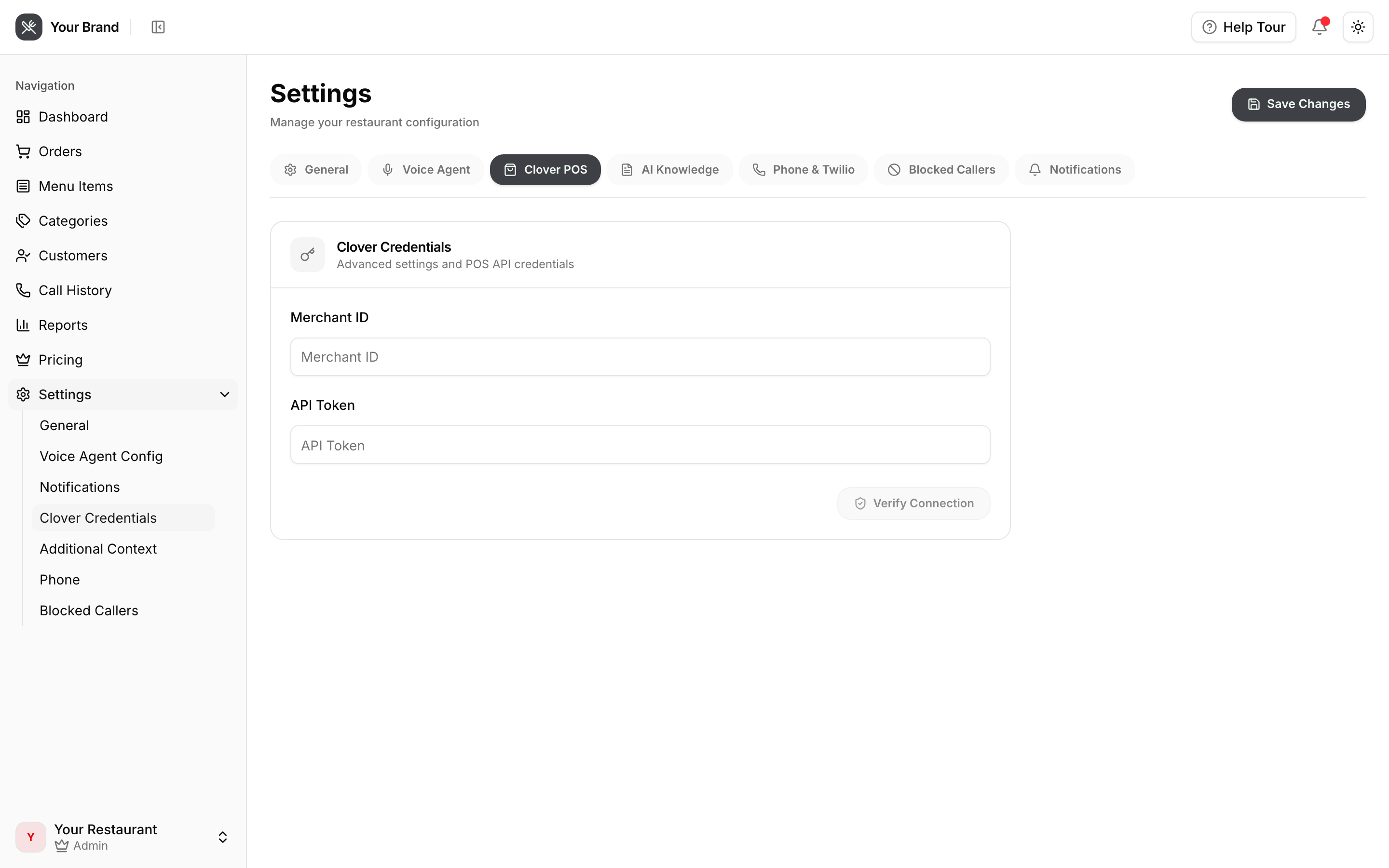
Paste your credentials
Enter the Merchant ID and API token, then press Verify Connection. The check runs against Clover straight away, so you'll know immediately whether the credentials work.
Save
Once verification passes, press Save Changes at the top right. Your menu begins syncing within about a minute.
The Merchant ID locks after the first save. It cannot be edited afterwards — contact [email protected] if it needs to change. The API token can be updated at any time.
What syncs, and how often
The menu sync runs about once a minute and pulls:
- Categories
- Items and prices
- Modifier groups
- Tax rates
Change something in Clover and the agent knows within roughly a minute. You do not need to re-enter your menu anywhere.
How orders reach your kitchen
When the agent takes an order it creates a ticket in Clover. It prints on your existing kitchen printers exactly like a walk-in or dine-in order — no new hardware, no new workflow, nothing extra for your staff to learn.
If something looks wrong
| Symptom | Likely cause |
|---|---|
| Verification fails immediately | Wrong Merchant ID or API token, or the token has been revoked in Clover |
| Menu is empty after several minutes | The Clover account has no published items, or the token lacks inventory read permission |
| Prices are stale | Confirm the change was published in Clover, then allow a minute for the next sync |
| Orders don't appear on the POS | Check that the token still has order-write permission |
Still stuck? Contact [email protected].