Connecting Stripe
Linking your Stripe account and publishing the plans your restaurants pay you on.
This is onboarding step 6, and the one most people get stuck on — because it's really two jobs that must happen in order: connect Stripe, then publish a plan.
First: which Stripe is which
There are two money flows on this platform, and they use different Stripe accounts. Mixing them up is the single most common source of confusion:
| Flow | Who pays whom | Whose Stripe |
|---|---|---|
| Platform → you | You pay Happy Voice for your plan | Happy Voice's Stripe. See Platform billing |
| Restaurants → you | Your clients pay you | Your Stripe — the one you connect here |
Money from your restaurants lands in your own Stripe account. The platform never holds it.
The screen
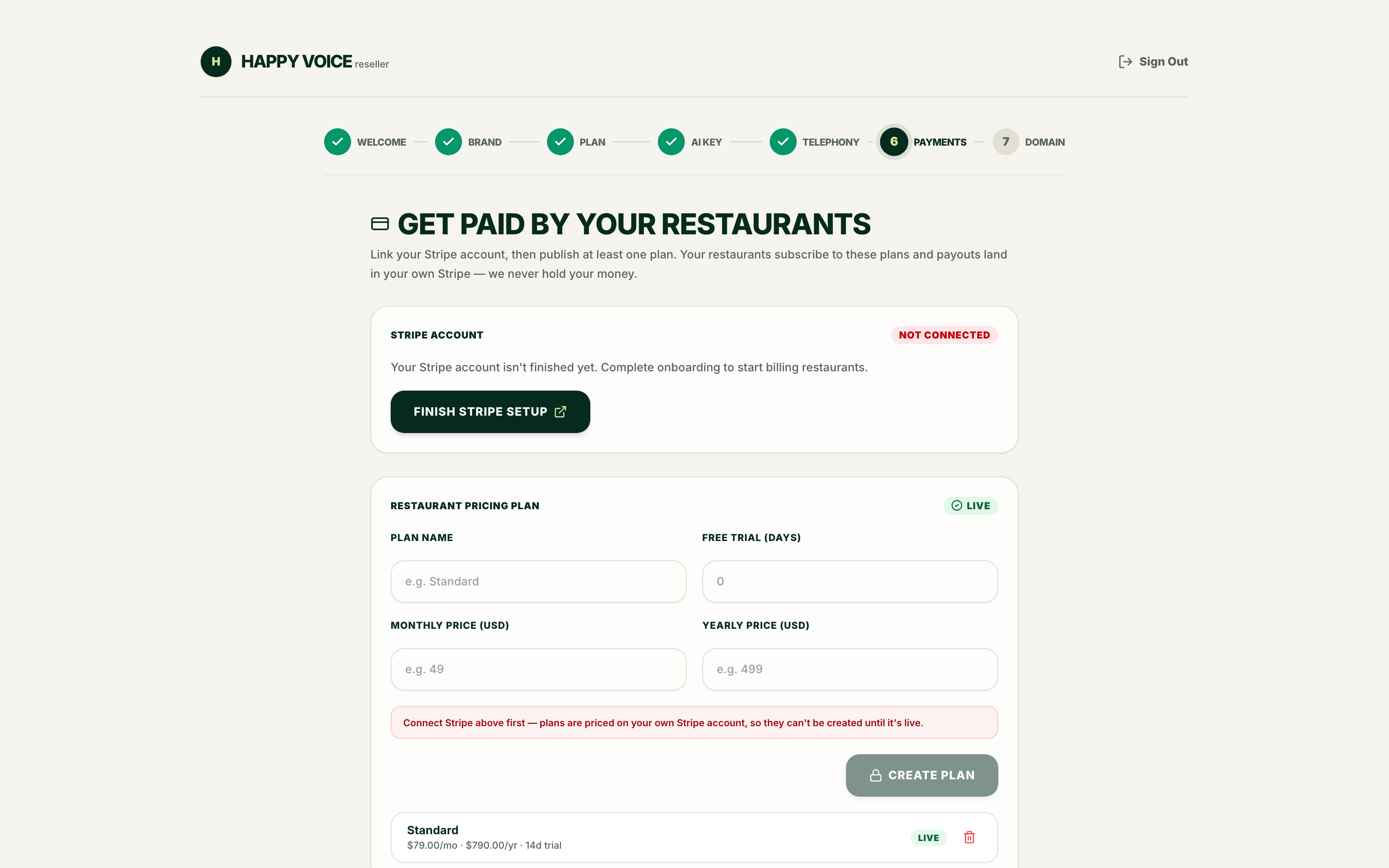
Two cards, top to bottom, and the order matters:
- Stripe account — shows Not connected until you finish Stripe's onboarding.
- Restaurant pricing plan — the plan your clients subscribe to.
Notice the plan form in the screenshot is filled with placeholders and the Create plan button is disabled, with the explanation: Connect Stripe above first — plans are priced on your own Stripe account, so they can't be created until it's live.
That's not a bug. A plan is a Stripe price object, and it cannot exist before there's a Stripe account to create it on.
Connect your Stripe account
Looking for a step-by-step visual guide? See our dedicated Stripe Connect Onboarding Walkthrough with full screenshots of every screen (business type, personal ID verification, bank selection, and final submit).
Start Stripe onboarding
Press Finish Stripe setup (or Connect with Stripe). You're handed to Stripe's own hosted onboarding.
Complete Stripe's form
Stripe asks for your business details, and — depending on your country and business type — identity documents and a bank account for payouts. This is Stripe's process, not ours; we never see the documents.
You can leave Stripe's flow part-way and come back. Your progress is kept on Stripe's side.
Return
Stripe sends you back to onboarding and the account status is re-checked automatically. You'll briefly see a confirmation while that happens.
If it still says "Not connected"
Stripe reports an account as usable only once it can actually accept charges. The status stays Not connected if any of the following is outstanding:
| Cause | Fix |
|---|---|
| Stripe onboarding was abandoned part-way | Press Finish Stripe setup again — it resumes |
| Stripe is still reviewing your details | Wait; Stripe emails you when the review completes |
| Business details or ID documents rejected | Resolve it in your Stripe dashboard, then reload this page |
| No payout bank account added | Add one in Stripe |
Reload the page after resolving anything on Stripe's side — the status is fetched fresh, not cached indefinitely.
Publish a plan
Once Stripe is live the plan form unlocks.
| Field | Required | Notes |
|---|---|---|
| Plan name | Yes | What your restaurants see, e.g. "Standard" |
| Free trial (days) | No | 0 for none |
| Monthly price (USD) | One of the two | |
| Yearly price (USD) | One of the two |
At least one of monthly or yearly is required. Press Create plan. Published plans are listed underneath with a Live badge and their prices — that's how you confirm Stripe issued the price IDs.
The step is only complete once a plan shows as Live. If it doesn't appear immediately after saving, give Stripe a moment and reload — the price IDs are created on Stripe's side.
Choosing your prices
You decide these numbers. The platform neither caps them nor takes a cut. Your margin is what you charge minus what you pay Happy Voice, minus your own Twilio and xAI usage.
Things worth thinking through before you publish:
- Your costs scale with call volume. A restaurant taking 400 calls a month costs you far more in Twilio and xAI than one taking 40. Flat pricing is simpler to sell but carries that risk entirely on your side.
- Yearly prices lock your margin in. If your upstream costs rise mid-year, you absorb it.
- Trials cost you real money. The agent is fully live during a trial, so Twilio and xAI bill you throughout it. A 30-day trial on a busy restaurant is a real expense.
- Leave headroom. Remember the per-restaurant overage you pay Happy Voice once you pass your plan's included count — see Platform billing.
Managing plans later
After onboarding, your plans live on the Restaurant Pricing page, where you can publish new ones and retire old ones.
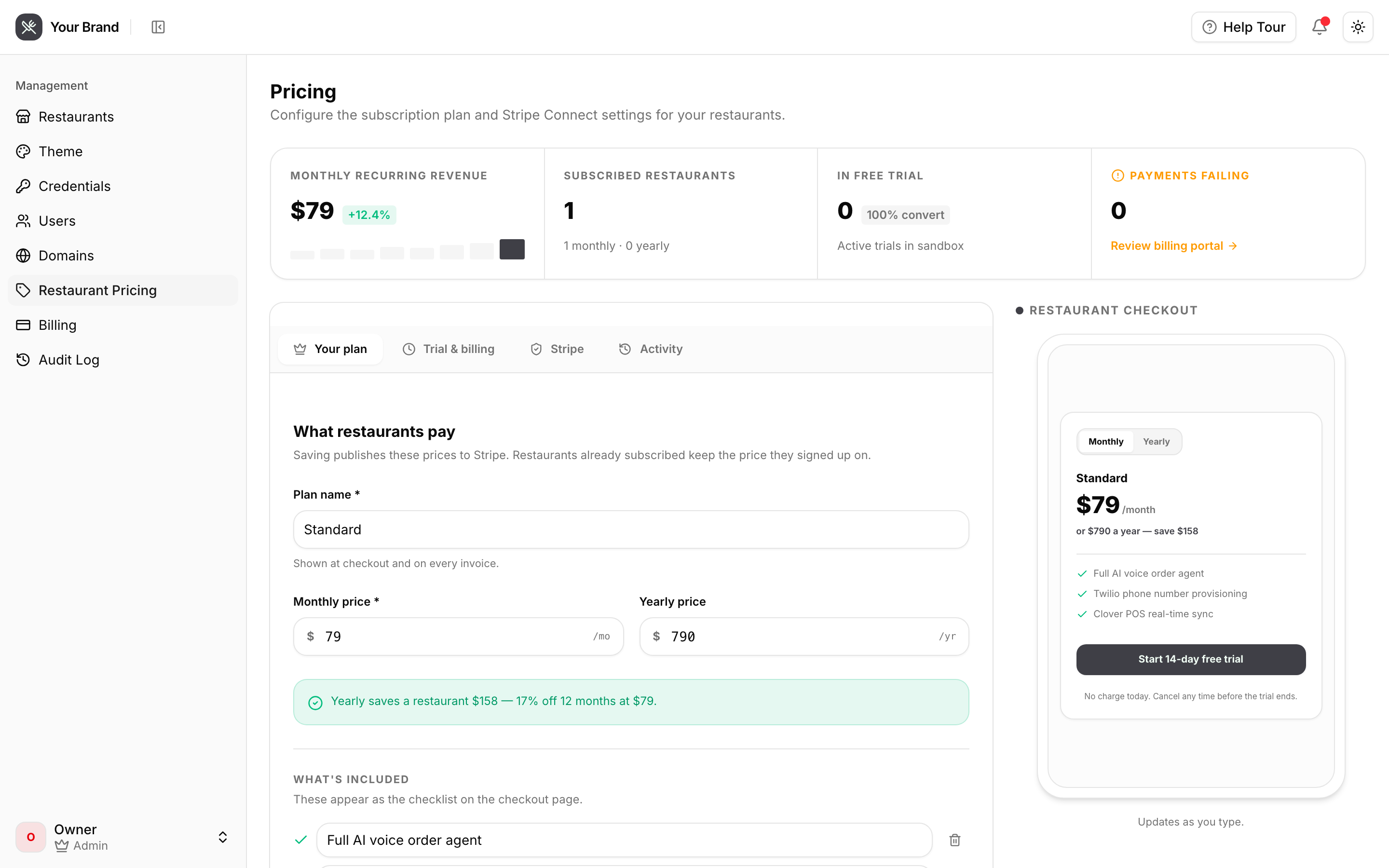
Changing prices later
Publish a new plan rather than editing a live one. Restaurants already subscribed stay on the plan they signed up to, which is almost always what you want — silently repricing existing clients is both a support problem and, in some jurisdictions, a legal one.
Raw-key mode
Stripe Connect is the default and what this page describes. The platform also supports supplying your own Stripe API keys directly. If you need that, contact [email protected] — it changes how webhooks are routed to your account.